Setting Up the Niantic SDK for Unity
To set up the Niantic SDK for Unity, you will need to:
- Create an Account
- Download and install the Unity Hub and the Unity Engine
- Install the Niantic SDK Unity packages
- Authenticate Niantic SDK in Unity
- Activate the XR Loader for your platform
- Configure Unity for the platform your AR experience will run on
- Set up a basic Unity AR scene
Create an Account
Before getting started with the NSDK setup, follow the steps to create a Niantic Spatial account. You will need an access token from your account to initialize the NSDK session and use its features.
Download and Install Unity
In order to install the Unity 3D Engine you must first install the Unity Hub which gives you access to the latest versions of the currently supported engines.
NSDK only supports Unity LTS and, as of the time of writing, officially supports Unity 6000.0.74f1. If you no longer see this engine version in the Unity Hub downloads window, you can locate them by going to the download archive.
You may notice that you can use any version of 6000.0.x and be okay. However, we have noticed in the past that some of these patch updates performed on the engine can introduce conflicts with NSDK. For maximum compatibility it's recommended to stick to the version mentioned above.
Create a Project and install the Niantic SDK Packages
- Android
- iOS
- Meta Quest 3
Create a Project and Install NSDK
- Create a new Unity project with the 3D (Built-In Render Pipeline) template. Alternatively, if planning to use Unity's Universal Render Pipeline select the Universal 3D (Core) template.
If you are using or plan to use the Universal Render Pipeline (URP), refer to How to Set Up NRDK with the Universal Render Pipeline for additional setup instructions.
- In your Unity project, open the Window top menu, then select Package Manager.
If you are using Unity 6000.0.X, you must update the AR Foundation package to a minimum of 6.3.0, but we recommend 6.4.1.
- From the plus menu on the Package Manager tab, select Add package from git URL....
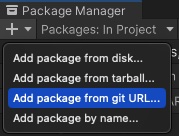
- Enter
https://github.com/nianticspatial/nsdk-library-upm.git.- If prompted, click Yes to activate the new Input System Package for ARFoundation 5.0. This may require a restart of the Unity Editor.
To use a specific NSDK version, download its .tgz from our release pages (nsdk-upm). Then, follow the installation instructions above and select "Add package from tarball" instead of the Git URL.
Create a Project and Install NSDK
- Create a new Unity project with the 3D (Built-In Render Pipeline) template. Alternatively, if planning to use Unity's Universal Render Pipeline select the Universal 3D (Core) template.
If you are using or plan to use the Universal Render Pipeline (URP), refer to How to Set Up NRDK with the Universal Render Pipeline for additional setup instructions.
- In your Unity project, open the Window top menu, then select Package Manager.
If you are using Unity 6000.0.X, you must update the AR Foundation package to a minimum of 6.3.0, but we recommend 6.4.1.
- From the plus menu on the Package Manager tab, select Add package from git URL....
- Enter
https://github.com/nianticspatial/nsdk-library-upm.git.- If prompted, click Yes to activate the new Input System Package for ARFoundation 5.0. This may require a restart of the Unity Editor.
To use a specific NSDK version, download its .tgz from our release pages (nsdk-upm). Then, follow the installation instructions above and select "Add package from tarball" instead of the Git URL.
The Niantic SDK leverages Meta XR Core SDK and Unity's XR Core Plugin to support the Meta Quest 3.
Follow Meta's official tutorial to begin developing for the Meta Quest 3 in Unity 6.
Notes & Caveats
- Ensure you're using a supported version of Unity 6 (such as 6000.0.74f1) and the OpenXR plugin (
com.unity.xr.openxr) version 1.15.1. Version 1.16.1 is known to cause issues, so force the package to 1.15.1 in the Package Manager. - The Meta XR Core SDK must be acquired from the Unity Asset Store, as explained in the Meta docs. Select Enable Feature Set if prompted.
- If prompted to restart the Unity Editor, do so with Restart Editor.
- Verify the Quest's OS version is >=v74
- Go to Meta → Tools → Project Setup Tools and resolve all issues.
- In your Unity project, open the Window top menu, then select Package Manager.
- From the plus menu on the Package Manager tab, select Add package from git URL....
- Enter
https://github.com/nianticspatial/nsdk-library-upm.git.- If prompted, click Yes to activate the new Input System Package for ARFoundation 6.1. This may require a restart of the Unity Editor.
- Install the NSDK Quest Package by repeating these steps using the following URL instead:
https://github.com/nianticspatial/nsdk-library-upm-quest3.git.
To use a specific NSDK version, download its .tgz from our release pages (nsdk-upm). Then, follow the installation instructions above and select "Add package from tarball" instead of the Git URL.
Authenticate Niantic SDK in Unity
- In Unity, navigate to the top menu bar and select the NSDK tab, then select Settings to open the NSDK Settings menu.
- Log into your Niantic Spatial account or create an account if you haven't done so
For more details, see the Authentication guide
Activate the XR Loader for Your Mobile Platform
In Unity versions 6000.0.74f1 or newer, you might see a benign error in the console after following these steps.
- Android
- iOS
- Open the NSDK top menu, then select XR Plug-in Management.
- In the XR Plug-in Management menu, select the Android tab, then check the box labeled Niantic Spatial Development Kit + Google ARCore.
- Open the NSDK top menu, then select XR Plug-in Management.
- In the XR Plug-in Management menu, select the iOS tab, then check the box labeled Niantic Spatial Development Kit + Apple ARKit.
Configure the Build Platform
- Open the Build Profiles window by selecting File > Build Profiles.
- Select iOS or Android, then click Switch Platform. After the progress bar finishes, click Player Settings. Select your platform from the tabs, scroll down to Other Settings, and change the following settings:
- Android
- iOS
- Rendering - Uncheck Auto Graphics API. If Vulkan appears in the Graphics API list, remove it.
- Identification - Set the Minimum API Level to Android 7.0 'Nougat' (API Level 24) or higher.
- Configuration - Set the Scripting Backend to IL2CPP, then enable both ARMv7 and ARM64.
- Identification > Signing Team ID - Enter your iOS app developer key from developer.apple.com.
- Camera Use Description - Write a description for how you're using AR, such as "NSDK".
- Target Minimum iOS Version - Set to 14.0 or higher.
- Architecture - Select ARM64.
In Unity, NSDK is configured through components and project settings. Once enabled, the SDK automatically receives AR frame and sensor data and updates each frame at runtime.
Next Steps
Setting Up a Basic AR Scene
- Android
- iOS
To get started creating your own AR project, begin by creating an empty AR scene:
- Create a new Basic scene:
- From the main menu, choose File > New Scene.
- Select Basic (Built-in) and click Create.
- Right-click on the Main Camera and select Delete.
- Add an ARSession and XROrigin to your new scene
- Select the new scene in the Hierarchy.
- From the main menu, select Game Object > XR > AR Session.
- Repeat to add an XR Origin (Mobile AR).
- Save the scene using File > Save.
If you choose Save As Scene Template, you can select this scene in the New Scene dialog next time.
To get started creating your own AR project, begin by creating an empty AR scene:
- Create a new Basic scene:
- From the main menu, choose File > New Scene.
- Select Basic (Built-in) and click Create.
- Right-click on the Main Camera and select Delete.
- Add an ARSession and XROrigin to your new scene
- Select the new scene in the Hierarchy.
- From the main menu, select Game Object > XR > AR Session.
- Repeat to add an XR Origin (Mobile AR).
- Save the scene using File > Save.
If you choose Save As Scene Template, you can select this scene in the New Scene dialog next time.